People beyond the screen.
AI removes backgrounds from supported VR180 and spatial videos without a green screen. Prepare 3D portrait passthrough from flat photos, or use compatible built-in Alpha masks.
A new dimension for your media
AI people passthrough, Apple spatial memories and 2D-to-3D. Bring Blu-ray movies, cloud libraries and everyday photos into your own space.
Two independent apps. Even more possibilities together.
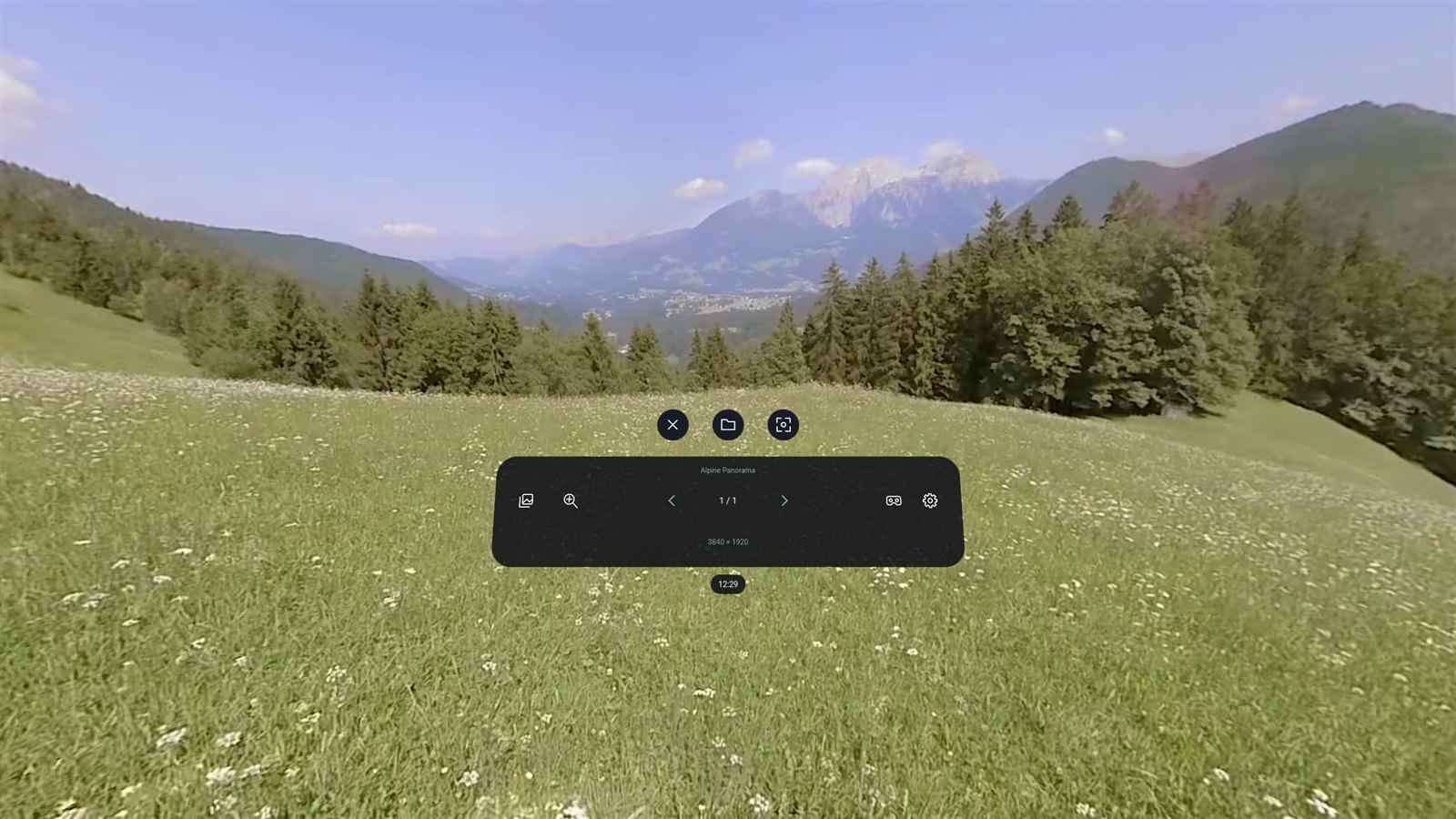
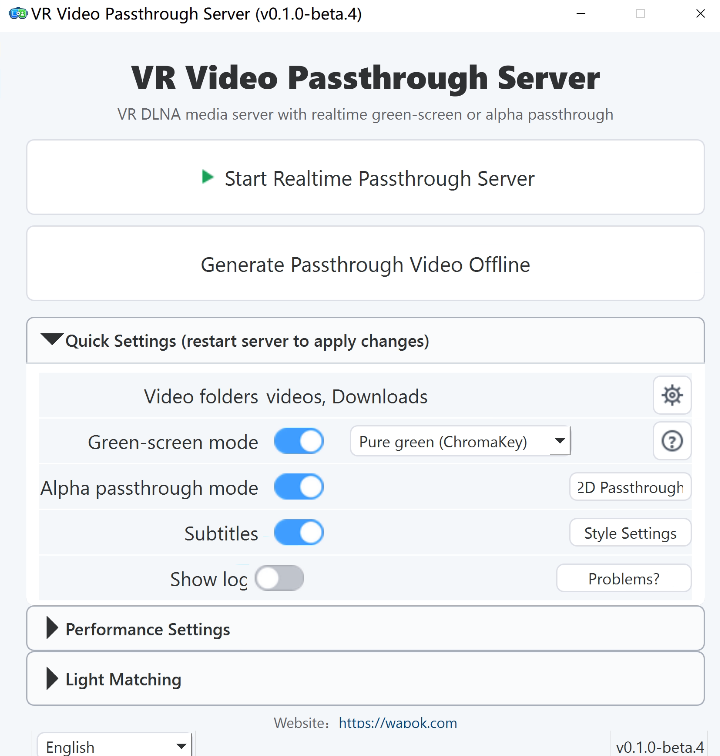
 THRU3D MEDIA PLAYERQUEST / PICO0.12.1
Watch spatial media and Blu-ray 3D, hear subtitles offline and enjoy your music. Player 0.12.1 adds cinema screens and personal viewing preferences to your connected library.
Full features & specificationsAI removes backgrounds from supported VR180 and spatial videos without a green screen. Prepare 3D portrait passthrough from flat photos, or use compatible built-in Alpha masks.
Native stereo iPhone spatial videos and HEIC/HEIF photos, including in passthrough. Use source-recommended stereo offsets and match capture FOV when valid metadata is available.
Add stereoscopic depth to flat mono videos and photos on your headset. Adjust strength up to 200%, with refined video detail and temporal smoothing.
On-device Chinese, English and Japanese text-to-speech with 12 preset voices, previews and original-audio ducking. Choose subtitle lines and remember settings for each video.
Six music tracks, six ambiences, playlists and a shared queue. Preview and import MP3, OGG, WAV, FLAC or DTS for offline listening while browsing photos.
100-inch, 150-inch and two giant-screen presets. Set distance from 1–50 m and size from 100–3000%, choose curvature, and keep recent adjustments or lock your preferred view.
Read videos, photos and same-folder subtitles from compatible FAT32, exFAT and NTFS USB drives and partitions. One action stops this app’s access to all USB drives.
Save videos, photos and folders. Choose how history is recorded, and protect favorites with a four-digit PIN and automatic locking.
Pick other text subtitles from the same folder and keep a separate sync offset for each. Cloud manual choices use the page opened with the video.
Side thumbnails, a 1–3-row Photo Wall and Memory Fragments. Pinch to browse, resize with both hands and inspect details with a 2–8× magnifier, with adjacent-photo preloading.
Play compatible unencrypted Blu-ray and MVC 3D ISO main features, with audio-track selection, pause and seeking.
Emby/Jellyfin posters, landscape cards, cast and multi-part details. Open a compact library while playback controls stay within reach.
Connect 115, Baidu, Aliyun, Quark or OneDrive. Load folders page by page, search by keyword and use the sorting and filters each service supports.
Flat videos, single photos and menus can follow your head for seated or reclined viewing. A separate environment passthrough button lets you see your surroundings.
Discover matching .si.mix.m4a audio from VR Video Toolbox CUDA and select cloned or translated dubbing as a playback track.
100-inch, 150-inch and two giant-screen presets. Set distance from 1–50 m and size from 100–3000%, choose curvature, and keep recent adjustments or lock your preferred view.
Play one, repeat one, play in order or repeat the list. Supported cloud and media-server libraries continue across pages; your selected mode is remembered.
Fine-tune audio timing per video and track, follow headset system volume and enhance quiet dialogue. Keep narration and original-audio levels separately adjustable.
Keep videos, photos and folders together. Protect the collection with a four-digit PIN, encrypted app storage and auto-lock. History recording is independent; removing records never deletes the original media.
Compatible spatial videos can apply the source-recommended stereo offset. Spatial videos and photos with valid capture data offer capture-FOV matching. Controls appear only when usable source metadata exists.
Local files, read-only FAT32/exFAT/NTFS USB drives, SMB, DLNA, WebDAV and compatible STRM links. USB support covers compatible drives/partitions; some mounted volumes need read-only folder authorization.
Emby, Jellyfin, Plex, Stash and XBVR, with in-VR sign-in and Plex phone/PC pairing. Emby/Jellyfin offer posters, landscape cards, lists, cast links, multi-image details and part selection. Favorites depend on the source.
Flat, 180°, 360°, fisheye and side-by-side/top-bottom stereo. Detect modes from filenames, lock your choice and retain viewing preferences. Four video play modes include ordered and list-repeat playback.
Move, resize, rotate and curve the screen. For stereo video, swap eyes, select one view or adjust horizontal/vertical alignment. Tune color; supported devices handle Dolby Vision Profile 5 color.
Select same-folder text subtitles and remember each sync offset (±10 s, 0.1 s steps). Adjust audio timing per video/track (±10 s, 0.05 s steps). Flat-video PGS, track memory and 0.25–3× playback with pitch compensation.
Favorite videos, photos and folders, reopen their source location and manage records with batch removal/undo. Choose all/local/no playback history. A four-digit PIN and auto-lock protect the app collection; source files remain unchanged.
Tune AI mask feathering, edge erosion, model size and frame-rate limit. Compatible full side-by-side fisheye videos can use their built-in Alpha mask instead, with the choice saved per video.
Customize buttons and combinations by scene. Wake idle rays by deliberate movement or a button, move panels with grip, resize flat video from its corners, and use the right stick for default screen size/immersive zoom. Seek targets commit when the stick returns to center.
Optional file management offers multi-select deletion and rename previews, with matching companion files where supported. Rename files or folders through 115 Open. Available actions depend on the source and permissions.
Use a 360° photo as the Player background, or choose environment passthrough. Adjust screen curvature, distance, sharpness and supersampling independently.
A free Windows media server for your video library. Use your GPU for live AI processing over DLNA, or batch-process videos offline and keep the MP4 output for compatible players.
GPU background removal with Alpha or green-screen output.
Add stereo depth to flat videos, live or offline.
Enhance supported 2D and VR video with NVIDIA RTX Video.
Process videos offline in batches and save MP4 files for compatible players.
Keep subtitles in the stream, with adjustable styles.
Mix your matching interpretation track into playback.
Choose your own setup
Watch directly on your headset, stream AI-processed video from your PC, or prepare files in batches for later. Your media is processed on your devices.
Add video folders to Server on your PC.
Use Alpha passthrough for Thru3D Player, or choose another supported mode.
On the same local network, open Player's DLNA library and select Server.
Server also works with compatible DLNA players. Match the output to the player and version you use. Thru3D Player uses Alpha passthrough.
| Player | Alpha | Gray green screen | ChromaKey |
|---|---|---|---|
| Thru3D Media Player | Supported | — | — |
| SKYBOX 2.0.2 Preview | Supported | — | Supported |
| Moon Player | — | Supported | Supported |
| 4XVR | Supported | — | Supported |
| DeoVR | Supported | — | Supported |
| HereSphere | Supported | — | Supported |
Your next dimension starts here
Pick the app that fits your setup. You can add the other whenever you like.
Meta · Coming soonAI passthrough, spatial media, offline subtitle narration, cinema screens and your music library. Explore Player 0.12.1.
View on MetaFeatures describe Player 0.12.1 standard builds. The Meta release is pending; source/build instructions are on GitHub. Available packages depend on the channel.
Free live AI processing, DLNA sharing and offline batch export for your PC library.
Download ServerCheck the release page for the available version and package details.
It reads selected Chinese, English or Japanese text subtitles locally; it does not translate or read PGS image subtitles. Choose a voice, lines, volume and ducking; timing adapts automatically up to 1.8× without a manual speech-rate slider. Each video remembers its settings and new videos start with narration off.
After a complete copy is saved locally, the original source can be offline. Android supports MP3/OGG/WAV/FLAC/DTS, up to 512 MiB per file, subject to free storage. Removing a playlist entry only removes its reference. Audio pauses for video or app focus loss; this is an in-app player.
No. Media Player plays local and network media independently, with AI processing on the headset. Media Server works on Windows with compatible DLNA players and offline tools. You can use either app, or combine them.
Separate QUEST and PICO builds target Quest 2 and PICO Neo3 or newer. Quest 3 and PICO 4 Ultra are recommended for AI features. Performance varies with device and media. The OpenXR Android build is experimental and needs a compatible runtime.
Windows 10 or 11 and an NVIDIA GPU for GPU processing. RTX 20 series or newer and at least 6 GB of VRAM are recommended for common realtime workflows. High-quality offline processing can need substantially more VRAM; see the project documentation for each mode.
People passthrough supports compatible VR180 and spatial videos, plus ordinary flat photos. Depth conversion supports flat mono videos and photos. AI results vary with media and device. Choose Alpha when sending passthrough video from Server to Player.
Native stereo MV-HEVC spatial videos and HEIC/HEIF photos can be viewed in passthrough. Compatible videos offer recommended stereo offsets; valid video/photo capture metadata enables FOV matching. Spatial-video people passthrough and ordinary-photo AI portraits have separate support conditions.
Enable it from a menu footer: flat videos, single or portrait-mode photos and menus follow your head. It remains active across content changes for the session and starts off on launch. Photo Wall, Memory Fragments and panoramic content retain their own placement. Environment passthrough is controlled separately.
Put the audio made with VR Video Toolbox CUDA beside the video with a matching name, such as movie.mp4 and movie.si.mix.m4a. On supported sources, Player discovers it and offers it in the audio-track menu.
Player opens the main feature of compatible unencrypted Blu-ray ISO files, including progressive 720p/1080p, 8-bit MVC 3D. Compatible multi-clip playlists are supported. Disc menus and encrypted discs are outside this scope; software decoding performance depends on your headset and media.
AI people passthrough creates a mask during playback. For compatible full side-by-side fisheye media with a built-in mask, choose the video's own Alpha mask in playback modes instead. This skips live AI matting and saves your choice per video; it does not imply support for every Alpha layout or chroma-key format.
It protects the app’s saved collection with a four-digit PIN and encrypted storage, plus manual/automatic locking. It does not encrypt original media or prevent other apps accessing it. Playback history follows its own all/local/off setting.
It stops this app’s USB playback and reading across drives and partitions. It is not system unmounting or power-off. USB support is read-only and depends on the drive, partition and authorization.